Check In Guests for In-Person Events
If you’re hosting an in-person event, you can check in guests as they arrive to verify their registration and track attendance.
Every guest receives a QR code when they register. Scan it at the door to check them in, or search for their name on the guest list to check them in manually.
Guest Tickets
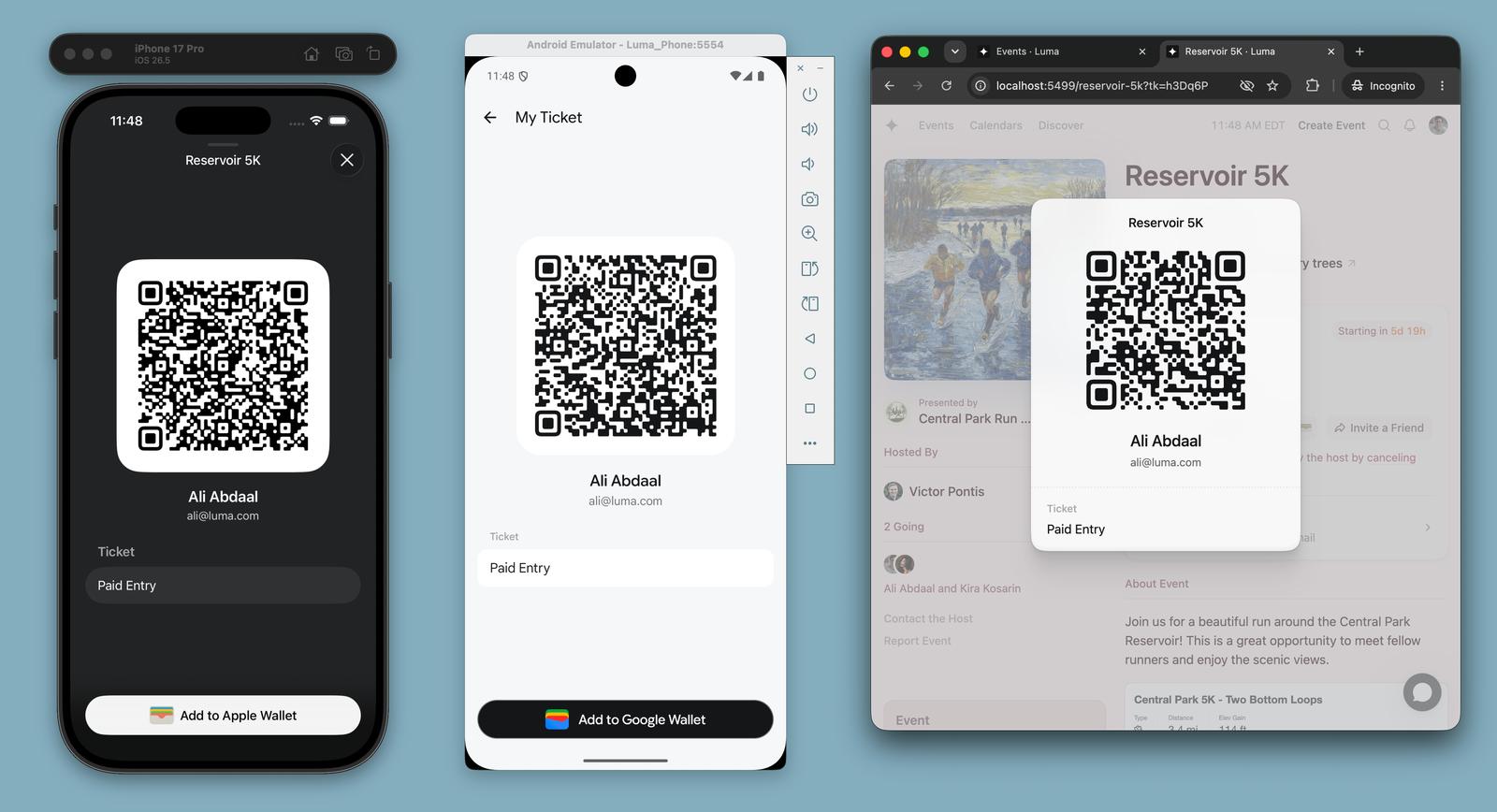
Guests can pull up their ticket QR code in a few places. They all contain the same code, so scan whichever one the guest shows you:
- Confirmation email — links to their ticket.
- Event page — visible when they’re signed in and registered.
- Luma app — on the event page in the iOS or Android app.
- Apple Wallet or Google Wallet — as a wallet pass (more below).
Here’s the ticket in the iOS app, the Android app, and on the web:
Wallet Passes
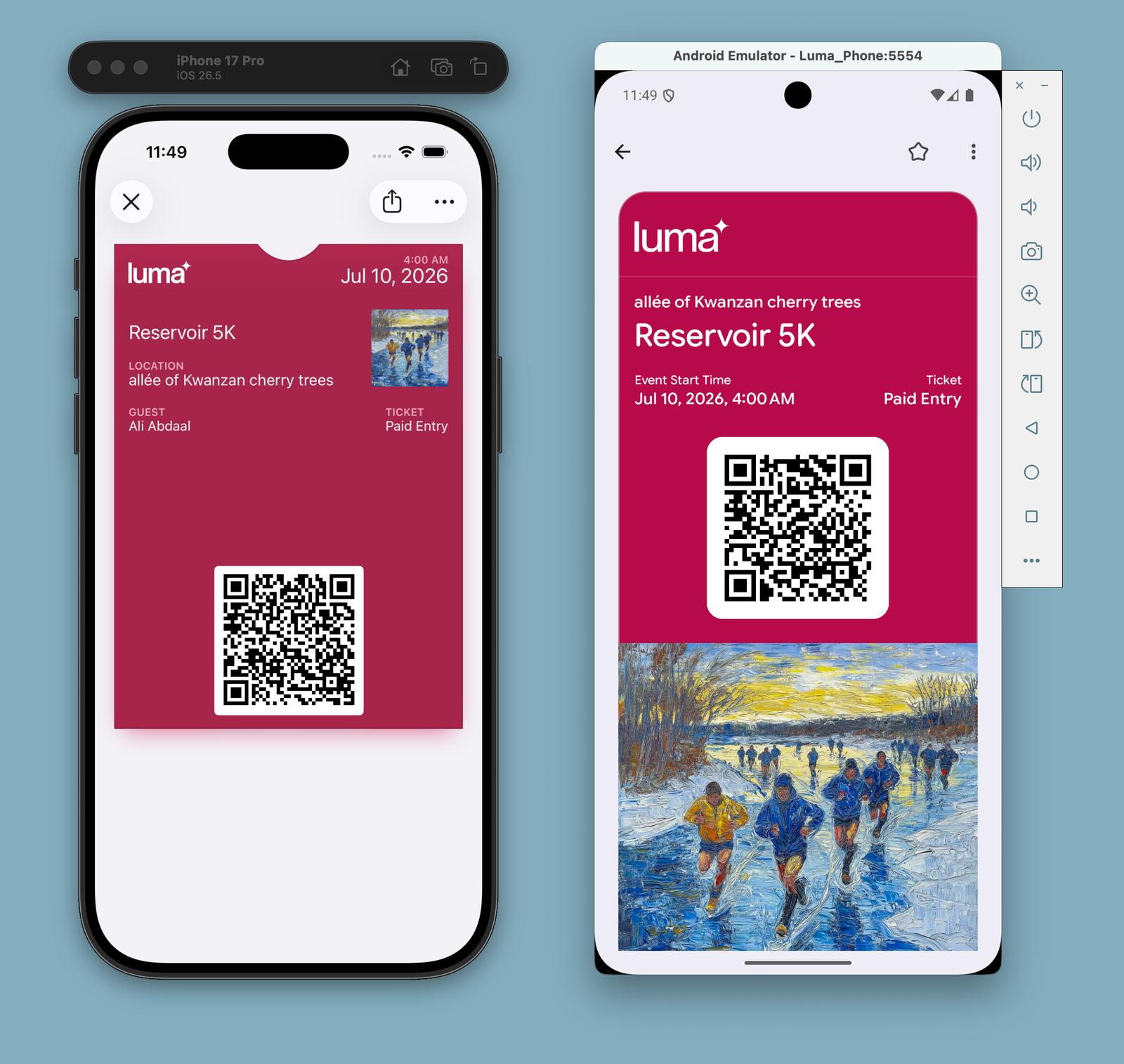
Guests can add their ticket to Apple Wallet or Google Wallet from the ticket view. The pass shows the event details and the same QR code as their other tickets, so you can scan it like any other ticket — it works even if the guest doesn’t have the Luma app or an internet connection.
Here’s the pass in Apple Wallet and Google Wallet:
Opening the Scanner
You’ll need to open the Luma scanner to scan tickets — a phone’s camera app won’t check guests in.
On Web: Go to your event’s manage page and click Check In Guests.
On iOS and Android: Open your event in the Luma app (luma.com/ios or luma.com/android). As a host, tap Manage, then Check In. Check-in staff will see a large Check In button right on the event page. We recommend the apps for the smoothest scanning experience.
Scan Modes
The scanner has two modes:
Standard Mode opens the guest’s details when you scan their ticket. You’ll see their information and registration status, then tap a button to confirm the check-in (or undo it). This gives you control to review each guest before checking them in.
Express Mode checks guests in automatically as soon as you scan their QR code — no tap needed. You’ll see color-coded feedback for each scan and a list of recently scanned guests at the bottom of the screen. If a ticket is invalid, you’ll see a red “Not Valid” message, and if the guest holds multiple tickets, the scanner shows their details so you can choose which tickets to check in.
Express Mode is ideal for large events where speed matters; Standard Mode is best when you want to review each guest at the door. To switch modes, tap the gear icon in the scanner.
Check-In Options
You can set how check-in works for your event. These options are available for in-person events.
On Web: Go to your event’s manage page, scroll to the Hosts section, and click Manage check-in staff and options.
On iOS and Android: Open your event’s manage page and tap Check-In Options.
From there you can:
- Set the default scan mode — choose whether the scanner opens in Standard or Express Mode for your team.
- Lock the scan mode for check-in staff — prevent check-in staff from switching modes, so every staff member has the same check-in experience. When locked, only hosts and managers can change the scan mode.
Adding Check-In Staff
You can give team members check-in access without granting them full event management permissions — useful for volunteers or door staff who only need to scan tickets.
From the Check-In Options panel, click Add to invite someone as check-in staff. They’ll be able to scan tickets, check in guests, and view the guest list, but they won’t be able to edit the event or message guests.
What check-in staff can see. Check-in staff can view the full guest list and search it by name or email, so they can check guests in manually without a QR code. For each guest they can see the name, email, phone number, profile photo, registration status, ticket type, registration date, amount paid (including any coupon code used and pending payments), and answers to registration questions. There’s no option to hide any of these fields from check-in staff, so only add people you trust with guest contact and payment details.
What check-in staff can’t do. They can’t download the guest list as a CSV, edit the event, message guests, approve or decline registrations, or access any other event management features.
Check-in staff requires Luma Plus.
Restricting Ticket Types
If your event has multiple ticket types — for example, different zones or sessions — you can restrict which ticket types each check-in staff member accepts.
From the Check-In Options panel, open a staff member’s options and select Restrict Ticket Types. In Express Mode, that staff member’s scanner will only automatically check in the selected ticket types. This is handy when each entrance or area should only admit certain tickets.
External Check-In Systems
If you’re using a third-party check-in system or building your own, see Integrating External Check-In Systems for how Luma’s QR codes work. For high-volume events, we also support hardware scanners.