Event Chat
You can create an Event Chat from the iOS or Android app. Open your event, go to Manage Event, then choose Start Event Chat.
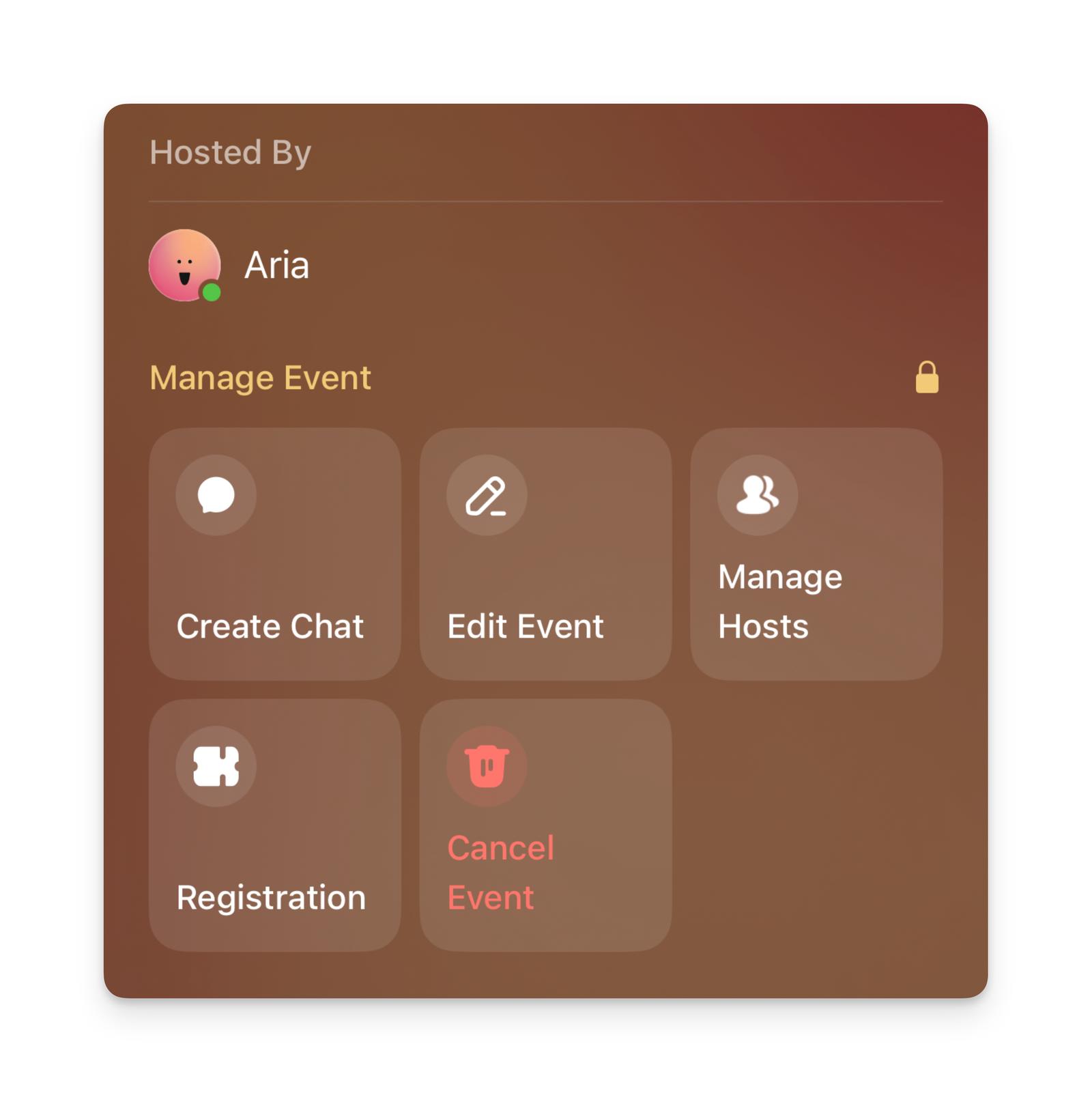
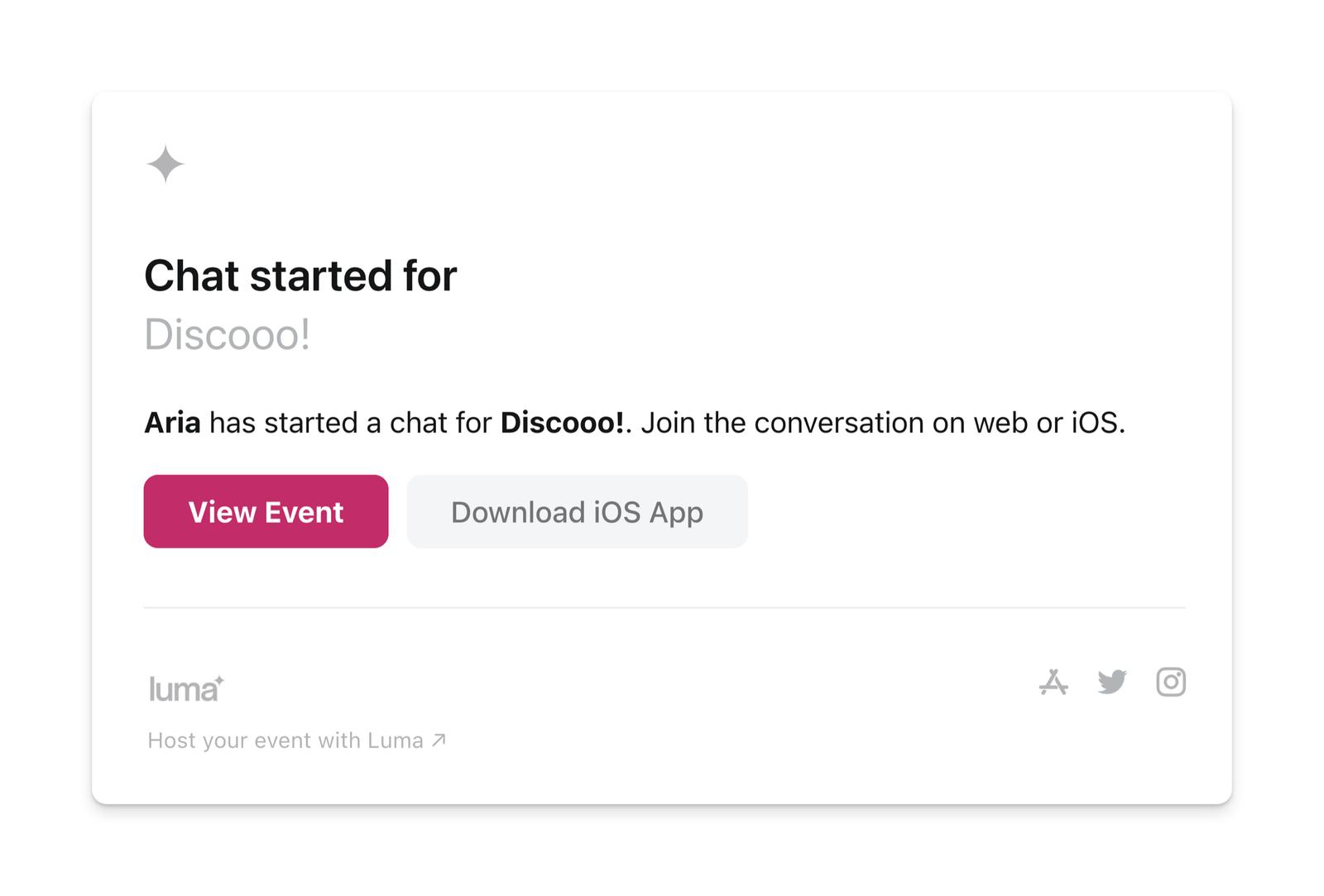
Once you create an event chat, we’ll automatically add all event hosts and approved guests. As guests register, they will be added to the chat. They will also be notified that a Chat has started for your event.
You can chat from the luma.com/chat website, the iOS app, and the Android app.
As guests register for and cancel their registration, we will automatically add and remove them from the event chat.
Moderating an Event Chat
Event hosts are admins of the event chat, so you can keep the conversation on track:
- Delete messages — You can delete any message in the chat. Open the message’s menu and choose Delete. Guests can only delete their own messages.
- Remove participants — Event chat membership is managed automatically from your guest list. To remove someone from the chat, remove them from the event on the Guests tab — they’ll be removed from the chat automatically.
Closing an Event Chat
If you no longer need the event chat, you can close it from the chat details:
- Open the event chat
- Select the chat header to open the chat detail screen
- Choose Close Chat
Closing the chat will prevent anyone from sending new messages. Participants can still find it in their closed chats. This is useful for past events where the chat is no longer relevant.