Managing Luma Plus
You can see and manage your Luma Plus from within Luma.
Go to luma.com/calendar/manage/plus to see which calendars you manage are on Luma Plus and then choose one of the calendars there.
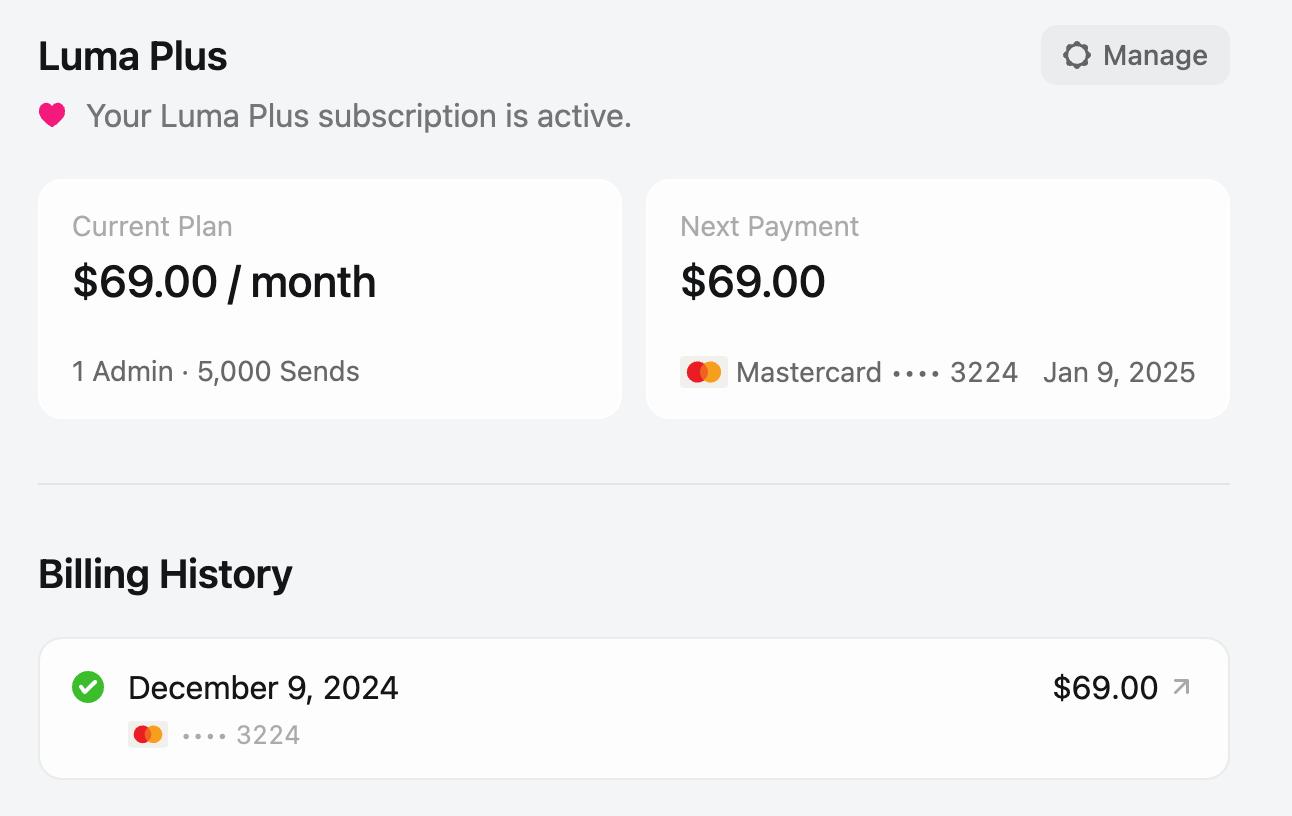
You’ll see an overview which includes:
- Current Price - This is much you are paying monthly / yearly. This will depend on when you signed up, the number of admins, your send limit, and if you have a coupon.
- Next Payment - This shows when we will charge you next for Luma Plus and the exact amount of your invoice. If you have credit on your account, you may see the amount reduced.
- Billing History - You can see and download previous invoices here. Note that we are unable to change invoices once they are finalized.
Managing Luma Plus
If you open the Manage panel, you’ll have a few options:
- Upgrade to Annual - If you are on Monthly billing, you can upgrade to Annual billing which will save you money. To switch from Annual to Monthly, you’ll need to let your plan expire and then resubscribe.
- Cancel Plan - You can cancel your Luma Plus plan. You will still have access to all of the features of Luma Plus until your plan expires. You can also think of this as turning off auto-renewal.
- Send Limit - You can see your send limit and buy more sends here.
- Admin Seats - You can add extra admin seats beyond the 5 included with Luma Plus. Each additional seat costs $12/month (or $9/month when billed annually) and is prorated when added mid-billing cycle.
- Removing Admin Seats - If you remove an admin seat, you’ll receive a prorated credit for the unused time. This credit is automatically applied to your next invoice. The credit is not shown separately in the app, but you’ll see it as a line item on your next invoice.
- Payment Methods - You can see, add, and remove payment methods connected to the calendar. If you want to switch the card you use for your next payment, you can do that here. These are separate from the payment methods saved to your Luma account — a card added at checkout or in your account settings won’t be used for Luma Plus.
- Activity - We show a history of different actions taken on your Luma Plus account (see below).
Activity History
The Activity section shows a log of changes made to your Luma Plus subscription. Each entry shows who made the change and when. For example, you can see when someone upgraded the send limit, added admin seats, or canceled the subscription. This is helpful for tracking billing changes, especially for calendars with multiple admins.
Billing Information and Invoices
You can customize the billing information that appears on your Luma Plus invoices. This is especially useful if you need to add your company name, tax ID, VAT number, or billing address for accounting purposes.
To update your billing information:
- Go to the Billing Information section in your Luma Plus settings
- You can customize:
- Company Name - Your company or organization name
- Billing Email - Where invoices and billing notifications will be sent, including failed payment notices. This doesn’t have to be your account email — make sure it’s an address someone on your team checks.
- Billing Address - Your company’s billing address
- Note - Add tax IDs, VAT numbers, or other billing notes
This information will automatically appear on all future invoices.
Downloading and Customizing Invoices
You can download invoices from the Billing History section. If you need to customize an invoice (for example, to add or update your tax ID or address):
- Find the invoice in your Billing History
- Click the Download button on the invoice
- A modal will open where you can customize the billing information (name, address, billing note)
- Click Generate to download the invoice with your customized details
- To save the invoice as a PDF, use your browser’s print function (Command + P on Mac, Ctrl + P on Windows) and select “Save as PDF”
This is particularly helpful if you need to update old invoices with new information, which is common for European customers who need to add VAT IDs or addresses after the fact.