Merging Luma Accounts
What “Merging” Means (and Doesn’t Mean)
Important: Luma cannot combine two existing accounts into one. When we talk about “merging,” we mean adding an additional email address to your existing account so that future invites sent to either email will appear in one place.
What linking an email does:
- Future event invites sent to the linked email will appear in your primary account
- When someone adds you as an event host or calendar admin using a linked email, it resolves to your primary account
What linking an email does NOT do:
- Events you previously created on another account will NOT transfer
- Past RSVPs and ticket purchases will NOT transfer
- Calendar memberships and roles will NOT transfer
- Contacts and guest lists will NOT transfer
If you have important events or data on a second account, you’ll need to access that account separately or manually recreate/transfer those items.
How to Link an Additional Email
You can add additional emails to your account in your Luma Settings page.
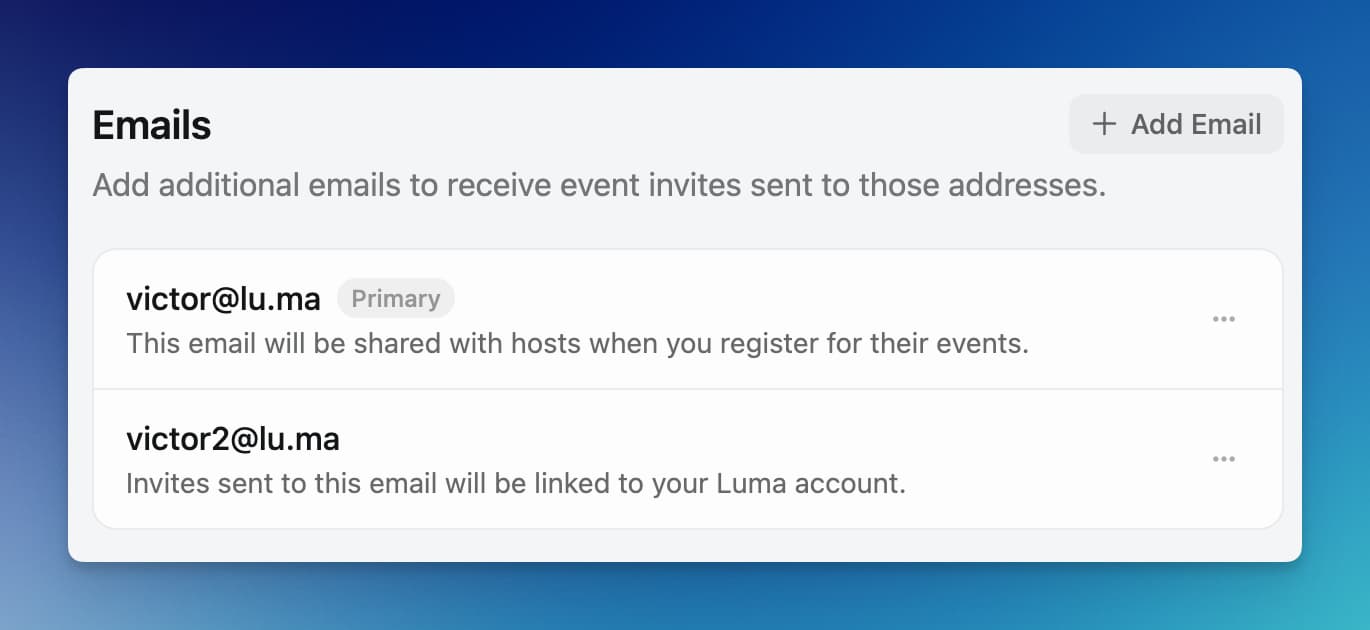
Note: If the email you want to add is already associated with another Luma account, you’ll need to log into that account and delete it first. Then you can link that email to your primary account.
Before you delete that account, check it for tickets or upcoming RSVPs. Deleting an account invalidates its registrations, and that data won’t move to your primary account. Luma won’t let you delete an account that holds a paid ticket to an upcoming event — if that’s the case, don’t delete it: change its primary email at luma.com/settings to free up the address instead.
If you’d simply like to change your primary email (not add a second one), you can do so any time at luma.com/settings.
Linking Phone Number
As for phone numbers, you can link your phone number to your Luma account but you can have at most one phone number linked.
Additionally, you can only link your phone number to one account.
If you’d like to transfer the phone number that your Luma account is linked to, you can sign in to that account (you can sign into Luma via phone number) and then unlink your phone number from that account via luma.com/settings.
Once your phone number is not linked to the previous account, you can link the phone number to the desired account.
Merging Calendars
We don’t have a built in tool to merge multiple calendars. But you have some options to do this:
- You can export your calendar contacts to CSV from the Calendar > People tab. You can then import them into another calendar.
- On the Manage Event page, you can transfer an event from one calendar to a different calendar.
Additionally, if you are currently using your Personal Calendar, you can convert it into a Team Calendar by visiting your Calendar Settings.
Why One Luma Account Works Best
Luma works best when you use a single account — even as you switch jobs, attend events across different communities, or host for multiple organizations. Here’s what that gets you:
- You can only be signed into one account at a time. The Luma iOS, Android, and web apps don’t support switching between accounts. If your events are split across two accounts, you’ll have to sign out and back in (or use a separate browser) every time you want to see the other one. Consolidating to one account is the only way to use the apps smoothly day-to-day.
- Invites always land in the right place. When you have two accounts, you have to guess which one an invite was sent to, sign in, and hope you picked right. With one account and multiple linked emails, every invite — personal, work, school — shows up in the same inbox and on the same home screen.
- No more hunting for tickets at the door. All your RSVPs and QR codes live in one account. You don’t need to remember which email you used to register for tonight’s event.
- Reliable reminders. Event reminders, waitlist updates, and host messages all go to the inbox you actually check. People who split across two accounts often miss notifications sent to the secondary one.
- Less confusion for hosts. If you RSVP from one account but a host invites you or adds you as a co-host using your other email, you show up as two separate people in their guest list and contacts. One account keeps your identity consistent for anyone who invites you.
- A consistent profile. Your name, photo, bio, and links show up the same way everywhere you register or host. People who’ve met you at one event can recognize you at the next.
- Your network stays intact. Contacts you meet through events, calendars you follow, and people you’ve hosted all stay connected to one account.
- Luma Plus and payment methods. Subscriptions, saved cards, and order history are tied to a single account. Splitting them means re-subscribing or re-entering payment info.
- Host history follows you. If you move between companies or communities, your event history and attendee lists stay with your account — you don’t lose them to an old work email.
You can link multiple email addresses (work, personal, school) to the same account, so you never have to choose. Any invite sent to any of your linked emails lands in the same place.
Two accounts can’t be combined later. Past RSVPs, tickets, contacts, and hosted events stay on whichever account they were created on. If you’re deciding between using an existing account or making a new one, it’s almost always better to link the email to your existing account instead.