How to set up your Stripe Account
Luma helps you get paid for your events. For that, we use Stripe as our payment processor. All payment is securely handled by Stripe and once set up, you should see funds arriving at your Stripe account instantly.
How to Link Stripe Account
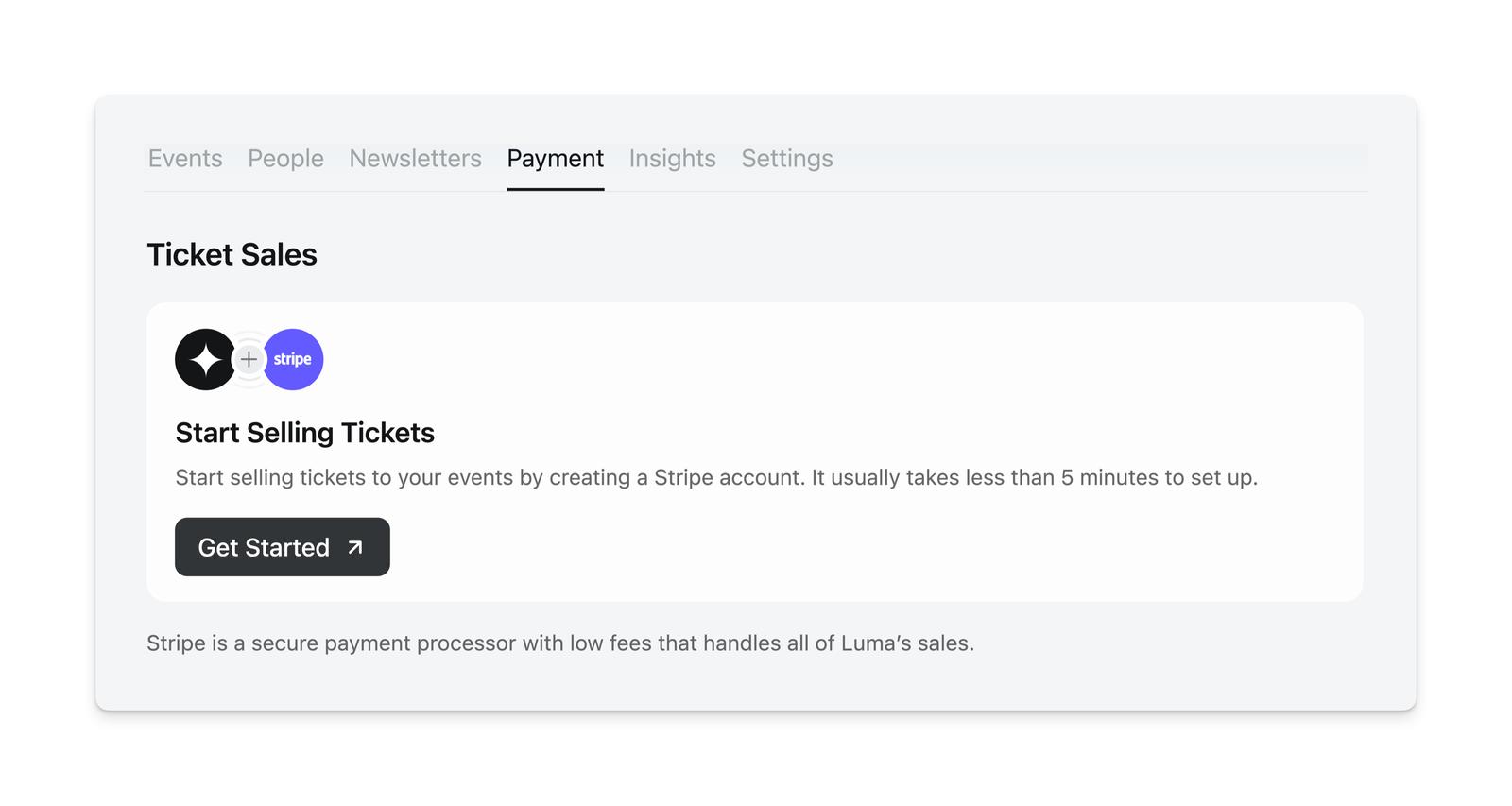
It is easy and fast to link your Luma account to Stripe. To set up your Stripe account, go to the Calendars Home and find the calendar you want to set up. Then go to the Payment tab.
You’ll be taken through the flow of setting up your Stripe Account or linking an existing account.
Viewing Sales and Payouts in Luma
You can track your revenue directly in Luma without needing to open Stripe. Go to your calendar’s Payment tab to see:
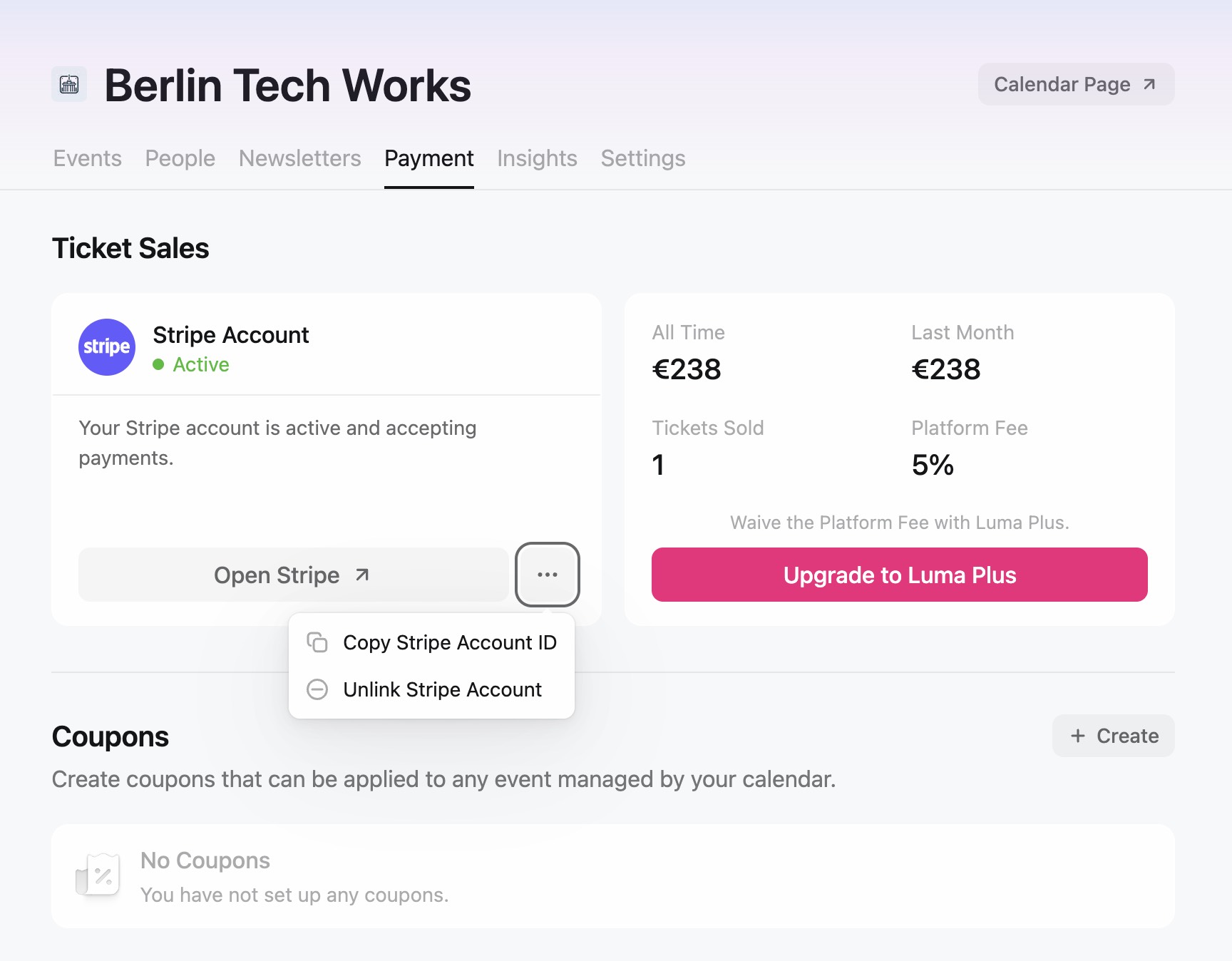
- Revenue summary — all-time revenue, last 30 days, total tickets sold, and your platform fee rate
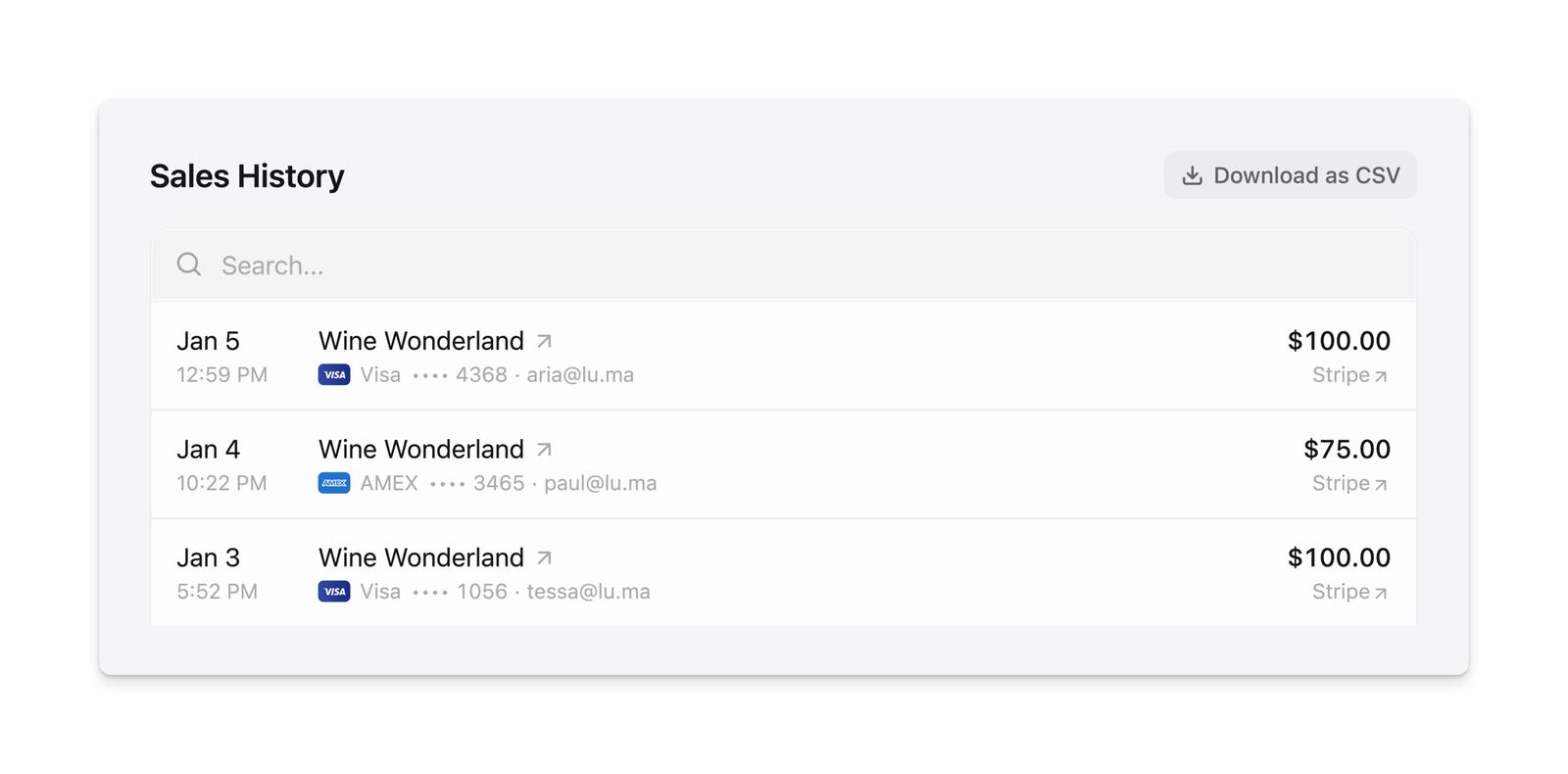
- Sales History — every transaction with the date, amount, guest name, and payment method. You can search transactions and download a CSV export.
- Payout History — each payout to your bank account or card, with the date, amount, status (deposited, pending, in transit, failed), and destination account
Most of the time, you don’t need to open Stripe at all — everything you need to track your earnings is on this page.
Manual payouts: If your Stripe account is set to manual payouts instead of automatic daily payouts, you’ll see a warning banner at the bottom of the Payment tab. You can change this setting in Stripe by clicking “Open Stripe” next to Payout History.
Accessing Your Stripe Dashboard
If you need to access your full Stripe dashboard (to update bank details, view detailed charge breakdowns, or manage your Stripe settings):
- Open luma.com/home/calendars
- Click on your calendar, then go to the Payment tab
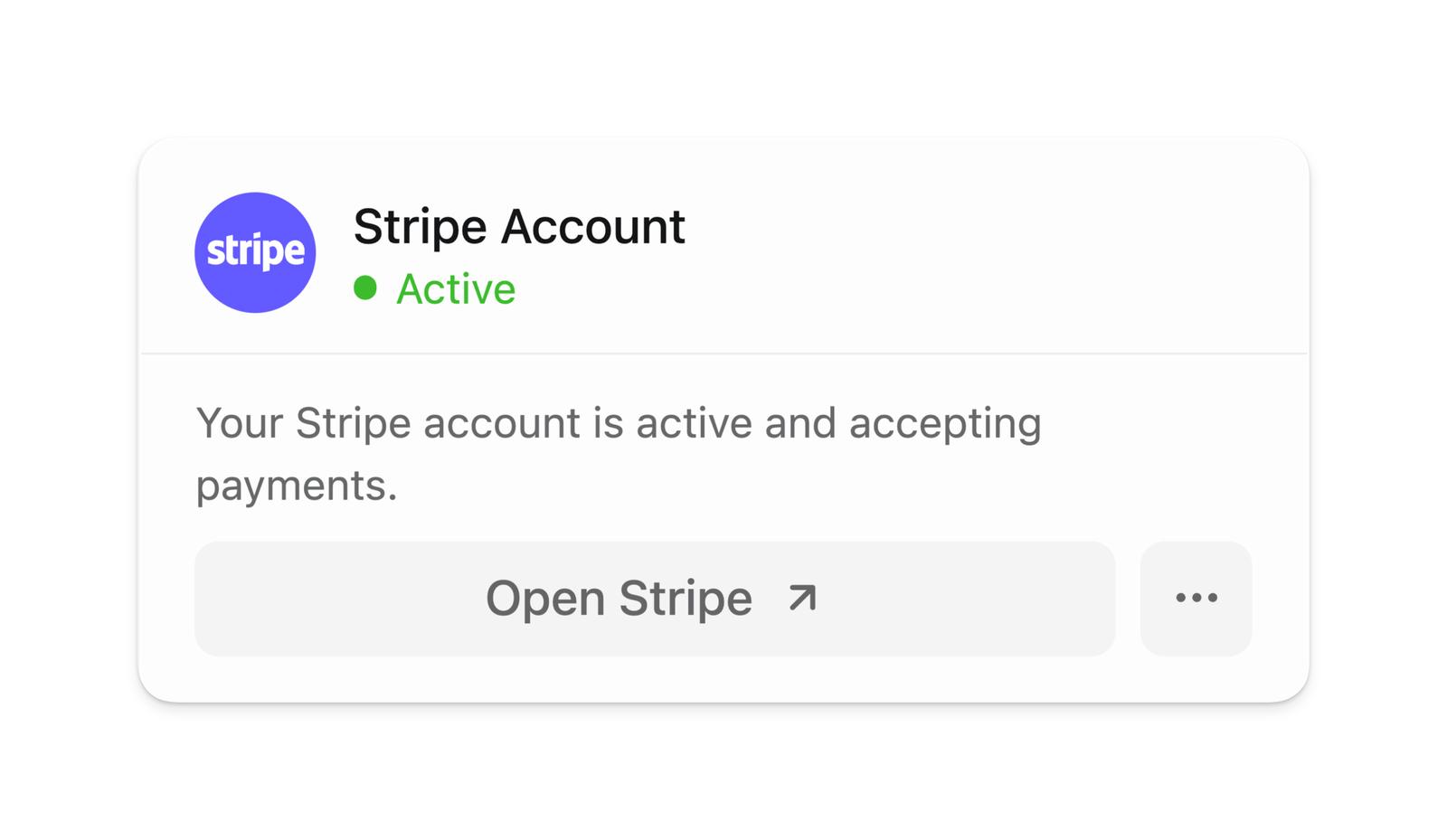
- Click ”Open Stripe”
This will take you to your Stripe Dashboard. You’ll need to log in with the email you used when you originally set up Stripe through Luma.
You can also find your Stripe Account ID by clicking on the three dots menu and selecting “Stripe Account ID”.
Each transaction in your Sales History also has a link to open that specific payment in Stripe.
Trouble Accessing Your Stripe Account
If you email Luma support about a payment problem, write in from the email address on your Luma account. That lets us look up the events and calendars connected to your account. A link to your event or your Stripe Account ID isn’t enough on its own, since we can’t confirm you own them.
”Open Stripe” takes me to the wrong account or asks me to create a new one
The “Open Stripe” button links directly to the Stripe account connected to your calendar. However, if you’re already logged into a different Stripe account in your browser, Stripe may show that account instead. To fix this:
- Go to dashboard.stripe.com and sign out
- Go back to Luma and click ”Open Stripe” again
- Log in with the email you used when you originally set up Stripe through Luma
I don’t know which email my Stripe account uses
The email on your Stripe account is the one you entered during the Stripe onboarding flow when you first linked Stripe to your Luma calendar. This may be different from your Luma account email. If you’re unsure, try the “sign out and re-open” steps above — Stripe will show you a login page where you can use “Forgot password” to check which email is associated with your account.
I’m seeing sales in Luma but my Stripe balance is $0
Luma’s Payment tab shows every sale your calendar has ever made, across every Stripe account it has been connected to. Stripe only shows the balance of the account you’re signed into. When those two disagree, it’s almost always one of these:
- You’re signed into a different Stripe account. Follow the sign-out steps above.
- You switched Stripe accounts partway through. Money stays in whichever account was connected when each payment was processed, so an account you linked later starts at $0. See Switching Your Stripe Account below for how to find where each payment landed.
To check a specific payment, open your calendar’s Payment tab, find the transaction in Sales History, and click its Stripe link. That link opens that exact charge in the account that received it — so if it drops you somewhere unexpected, you’re signed into a different account than the one holding the money.
My money is in Stripe but no payout has arrived
Stripe holds funds until your account is fully verified. If Stripe is still waiting on documents or business details, your balance grows but payouts don’t go out, no matter what payout schedule you have set. Open your Stripe dashboard and look for a verification banner or Settings → Business to see what’s outstanding. Once Stripe finishes verifying, held funds pay out on your normal schedule. Luma can’t complete this verification for you or release funds early.
I transferred my event to a different calendar and can’t find the payments
When you transfer an event from one calendar to another, payments that were already processed stay with the original calendar’s Stripe account — they don’t move to the new calendar. Only new sales after the transfer go to the new calendar’s Stripe account. If you need to access the funds from before the transfer, coordinate with the admin of the original calendar.
Statement Descriptor
The merchant name your guests see on their bank or credit card statement comes from your Stripe account, not from Luma. Each calendar processes payments through its own connected Stripe account, so the descriptor reflects what you’ve set in Stripe.
This matters because an unfamiliar or generic descriptor is a common trigger for bank anti-fraud blocks, especially on international transactions. A recognizable, localized name that matches your event branding is easier for banks to whitelist and for your guests to recognize.
To customize your statement descriptor:
- Open your Stripe Dashboard
- Go to Settings → Public details
- Update the Statement descriptor (the full name, up to 22 characters) and the Shortened descriptor (up to 10 characters, used when the card network truncates)
Use a name your guests will recognize from your event branding. Keep it short, avoid special characters, and match the language your audience expects.
If a guest reports that their card was declined or blocked by their bank, see When a Card is Declined for guidance you can share with them.
Multiple Calendars and Stripe Accounts
Each Luma calendar has its own separate Stripe connection. If you have multiple calendars, you’ll need to link Stripe to each one individually.
Why did Stripe create a new account instead of using my existing one?
When connecting Stripe, you have two options: Create Stripe Account (creates a brand new Stripe account) or Link Existing Stripe Account (connects your existing Stripe account via login). If you already have a Stripe account, choose Link Existing Stripe Account to avoid creating a duplicate.
I accidentally created duplicate Stripe accounts
If you used “Create Stripe Account” instead of “Link Existing,” you may have extra Stripe accounts you don’t need. To fix this, unlink the calendar in Luma and re-link using Link Existing Stripe Account. To close or manage the unwanted Stripe accounts, you’ll need to do that directly through Stripe’s dashboard — Luma is not able to delete or modify Stripe accounts.
Switching Your Stripe Account
⚠️ Warning: Switch Stripe accounts with caution. Payments are processed through whatever Stripe account is connected at the time of purchase. When you switch to a new Stripe account, previous payments stay in the old account — they do not transfer to the new one. You also cannot refund payments from your old account or capture pending payment authorizations (like require approval tickets).
To switch your Stripe account:
- Go to Calendar → Payment tab
- Click the three dots menu in the Stripe card
- Select Unlink Stripe Account
- Confirm unlinking (you cannot accept payments until a new account is linked)
- Link a new or existing Stripe account
Before switching: Process all refunds and capture or decline any pending payments.
If you have recurring membership tiers, you can’t unlink Stripe until you change every recurring tier to a different payment type (free or one-time). This applies even if a tier has no active members. Existing subscriptions stay on the old Stripe account and keep renewing there after you switch — Stripe can’t move them to another account. To move a member to your new account, remove them from the tier and have them subscribe again. Removing a subscriber cancels their subscription immediately, with no refund for the rest of the billing period. See Calendar Memberships for details.
Note: Unlinking Stripe from Luma only disconnects the integration on Luma’s side. It does not delete or remove your Stripe account, and the Stripe Connect platform authorization may remain visible in your Stripe dashboard. Luma is not able to delete or fully deauthorize Stripe accounts. If you created your Stripe account through Luma, Stripe lists Luma as its platform, so some settings are locked and Revoke access is greyed out. Luma can’t release the account, so contact Stripe support about those settings.
Finding which Stripe account received a payment: If you’ve switched Stripe accounts and need to track down where specific payments went, download the By Ticket CSV from your event’s Proceeds section (Event → Manage → Guests → Proceeds → Download → By Ticket). This CSV includes a stripe_account_id column showing which Stripe account received each payment. You can also find this in the Sales History CSV on your calendar’s Payment tab.
Products and Taxes in Stripe
Luma does not create a Stripe Product for events or ticket sales. Additionally, we do not use the Stripe Tax feature so you will not be able to find any tax information in Stripe.
You can find tax information in Luma, we cover that in separate support articles.