Taxes and VAT
Tax configuration is available with Luma Plus.
We support adding a Tax / VAT to all events under your calendar.
You can set up your Tax Configuration by:
- Find the calendar you manage on luma.com/home/calendars and click on the calendar
- Go to the Payment Tab
- Scroll down to the “Tax Configuration” section
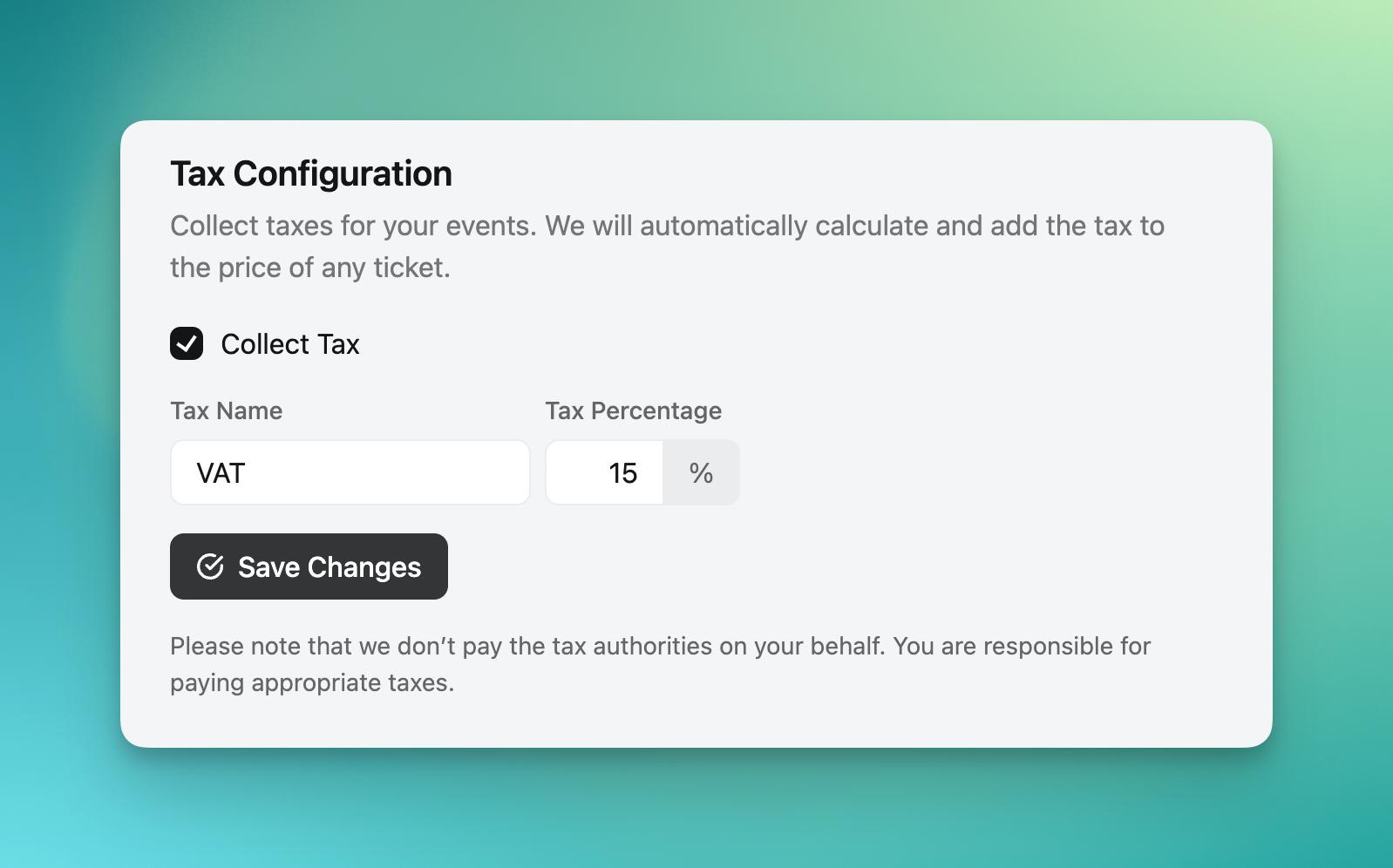
You can set the tax name and the percentage. This will be applied to all events managed by the calendar. It applies to event tickets only, not to calendar memberships.
The tax amount is included in the price we show to guests. For example, if you set a tax of 20% with a ticket price of $10, guests will see a ticket price of $12.
When a guest checks out, we show the breakdown of the ticket price, the tax amount, and the total price they will pay.
Note: We do not pay the tax authorities on your behalf. You are responsible for collecting and paying the legally required taxes.
Why We Show the Full Price Upfront
The tax is built into the headline price on purpose — the number a guest sees is the total they’ll pay. At checkout we show how that splits between the ticket price and tax, but the total never goes up.
This can feel unfamiliar if you’re used to industries where the price is shown before tax and the real total only appears at the end. But this is quickly becoming the norm: a growing number of countries and US states now require event platforms to show the full price upfront. Luma has shown the full price from the start, so this has always been how we work.
Beyond the legal side, we believe it simply creates a more trusted experience. When the price a guest sees is the price they pay, there are no surprises at checkout and no second-guessing whether a number will jump at the last step. Guests are more likely to follow through, and hosts get a listing that feels honest and converts better.
The same goes for platform fees — the price you set is exactly what guests see and pay.
If you’d like guests to know the price already includes tax, you can mention it in your event description to set expectations.
Per-Event Tax Configuration
Tax configuration applies to all events on your calendar. If you need a different tax rate or name for a specific event — for example, an event in a different region — per-event tax configuration is available with Luma Enterprise.
Reports
If you’d like to see all transactions on your calendar along with taxes, you can download a CSV from your Luma dashboard.
- Go to luma.com/home/calendars
- Choose the calendar you are interested in
- Go to the Payment tab — you’ll see a Sales History section along with an option to download a CSV
In that CSV, you’ll see a list of all transactions including the amount paid in taxes.
Invoices and Receipts
Guests can download a receipt or invoice for each payment, and you can add your business details (name, address, VAT number) to those documents. When you charge tax, a PDF receipt is also attached to each guest’s confirmation email automatically. If your Stripe account is in a country that requires sequentially numbered invoices, Luma numbers them from an unbroken series automatically. See Customize Invoices / Receipts.
Luma’s Tax Info
Luma Labs, Inc. is a US company (Delaware C corporation) based in San Francisco. Our EIN is 85-1451475, and you can download our signed W-9. We do not provide European VAT numbers.
Paying Luma from outside the US
Luma Plus is a self-serve subscription billed by card at the listed price. Any taxes or withholding your country applies to payments to a foreign vendor are your responsibility. We don’t provide a Tax Residency Certificate (IRS Form 6166), No Permanent Establishment declaration, or India Form 10F.